
cfchris.com

Loading

java coding

Java Coding: A Practical Guide to Building Your First Programs

Java Coding: A Practical Guide to Getting Started

Java is a widely used programming language known for its portability, reliability, and extensive ecosystem. It powers everything from business applications and web services to Android tools and large-scale systems. Whether you are learning to code for the first time or adding another language to your toolkit, Java offers a structured way to build useful software.

What Is Java?

Java is a general-purpose, object-oriented programming language. Developers write Java source code, which is compiled into bytecode. That bytecode runs on the Java Virtual Machine (JVM), allowing the same program to work on different operating systems with a compatible Java runtime.

This approach is often summarized as “write once, run anywhere.” In practice, a program may still need adjustments for platform-specific features, but the JVM helps make Java applications portable across many environments.

Writing Your First Java Program

A simple Java program can display a message in the console:

public class Main {

public static void main(String[] args) {

System.out.println("Hello, world!");

}

}

In this example, Main is the class name, and main is the method where the program begins. The System.out.println statement prints text to the console. Java is case-sensitive, so capitalization and punctuation matter.

Core Concepts in Java Coding

Variables and Data Types

Variables store values that a program can use. Java requires each variable to have a declared type, such as an integer, decimal number, or piece of text.

int age = 30;

double price = 19.99;

String name = "Jordan";

boolean isActive = true;

Choosing the right type makes code easier to understand and helps prevent certain errors.

Conditionals and Loops

Conditionals let a program make decisions. Loops repeat instructions when a task needs to happen more than once.

if (age >= 18) {

System.out.println("Adult");

} else {

System.out.println("Minor");

}

for (int i = 0; i < 3; i++) {

System.out.println("Count: " + i);

}

Methods

Methods group instructions into reusable units. A method can accept information, perform an operation, and return a result.

public static int add(int first, int second) {

return first + second;

}

Breaking a program into methods can make it easier to test, maintain, and reuse.

Classes and Objects

Java uses classes to describe the data and behavior associated with a type of object. An object is an instance of a class. For example, a Book class might define a title and author, while individual book objects hold specific values.

class Book {

String title;

String author;

Book(String title, String author) {

this.title = title;

this.author = author;

}

}

Object-oriented programming helps organize larger programs into components that represent related ideas.

Tools for Java Development

To write and run Java programs, install a Java Development Kit (JDK). The JDK includes tools for compiling and running code. Many developers also use an integrated development environment (IDE), such as IntelliJ IDEA, Eclipse, or Visual Studio Code, to edit code, find errors, and manage projects.

For small experiments, a basic text editor and command-line tools can be enough. As projects grow, an IDE and a build tool can make development more efficient.

Tips for Writing Better Java Code

  • Use clear names: Choose names that explain what variables, methods, and classes are for.
  • Keep methods focused: A method that handles one task is easier to understand and test.
  • Format consistently: Indentation and readable spacing make code easier to review.
  • Handle errors thoughtfully: Use exceptions to respond to unexpected conditions instead of ignoring them.
  • Practice with small projects: A calculator, to-do list, or simple text-based game can reinforce fundamental concepts.
  • Read the documentation: Official references and reputable tutorials can help clarify how Java libraries work.

Getting Started

The best way to learn Java coding is to write programs regularly. Start with basic syntax, then practice variables, conditionals, loops, methods, and classes. Once those concepts feel familiar, explore collections, file handling, testing, and popular Java frameworks.

Java has a long history and a broad community, so learners can find plenty of examples and resources. With steady practice and a focus on readable code, you can use Java to build everything from simple programs to robust applications.


6 Essential Tips for Writing Clean, Reliable Java Code

  1. Use meaningful names for classes, methods, and variables.
  2. Prefer `List` and `Map` interfaces over concrete types.
  3. Keep methods focused on one task.
  4. Use try-with-resources to close files and streams.
  5. Handle exceptions specifically instead of catching `Exception`.
  6. Write unit tests for important behavior.

Use meaningful names for classes, methods, and variables.

Use meaningful names for classes, methods, and variables to make Java code easier to read, understand, and maintain. Choose names that describe a clear purpose—for example, calculateTotal is more informative than doIt, and customerEmail is clearer than x. Consistent, descriptive naming helps teammates follow your code and makes it easier to update later.

Prefer `List` and `Map` interfaces over concrete types.

When writing Java code, declare variables and method parameters using interfaces such as `List` and `Map` instead of specific implementations like `ArrayList` or `HashMap` whenever possible. For example, use `List names = new ArrayList<>();` rather than making the variable type `ArrayList`. This keeps code flexible: you can change the implementation later without changing the parts of your program that depend on it. Choose a concrete type when you create the collection, and use the interface to describe how the rest of your code interacts with it.

Keep methods focused on one task.

Keep each Java method focused on one task. When a method has a clear, specific purpose, it’s easier to read, test, debug, and reuse. If a method handles several unrelated jobs, consider splitting it into smaller methods with descriptive names. This makes your code easier to maintain and helps other developers understand how each part of the program works.

Use try-with-resources to close files and streams.

Use Java’s try-with-resources statement to ensure files, streams, and other resources are closed automatically when you’re done with them. Declare the resource inside the parentheses after try, and Java will close it whether the code finishes normally or an exception occurs. This helps prevent resource leaks and keeps your code simpler than managing cleanup manually with a finally block.

Handle exceptions specifically instead of catching `Exception`.

Catch the specific exceptions your code can reasonably handle instead of catching the broad `Exception` type. A targeted catch makes it clear which errors you expect and lets you respond appropriately—for example, handling a missing file differently from invalid input. Catching `Exception` can hide unrelated problems and make bugs harder to find. If you cannot recover from an error, let it propagate or handle it at a higher level where meaningful action can be taken.

Write unit tests for important behavior.

Write unit tests for important behavior to make sure your Java code works as expected and continues to do so as it changes. Tests can verify individual methods, check edge cases, and catch regressions early—before they cause problems elsewhere in an application. Focus first on critical logic, such as calculations, validation, and error handling, and use clear test names that explain what each test checks. Java frameworks like JUnit make it straightforward to organize and run tests as part of your development workflow.
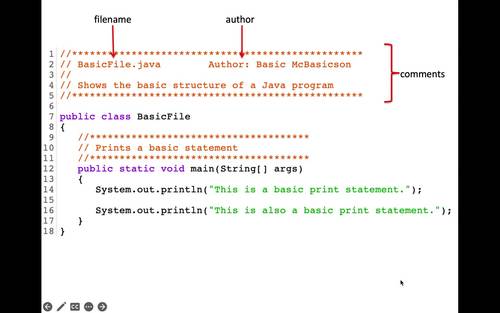

simple java program

Simple Java Program: A Beginner’s Guide to Writing and Running Your First Code

How to Write a Simple Java Program

Java is a popular programming language used to build desktop, web, and mobile applications. A good way to get started is to write a small program that displays a message on the screen.

Your First Java Program

The program below prints “Hello, World!” in the console:

public class HelloWorld {

public static void main(String[] args) {

System.out.println("Hello, World!");

}

}

Understanding the Code

  • public class HelloWorld defines a class named HelloWorld. In Java, the class name should match the file name, so save the program as HelloWorld.java.
  • public static void main(String[] args) defines the main method. Java starts running the program from this method.
  • System.out.println() displays text in the console. The text to display goes inside the parentheses and quotation marks.
  • Braces, { }, mark the beginning and end of the class and method.
  • The semicolon at the end of the print statement tells Java that the instruction is complete.

Compile and Run the Program

Install a Java Development Kit (JDK), then open a terminal or command prompt in the folder containing HelloWorld.java. Compile the program with:

javac HelloWorld.java

If compilation succeeds, Java creates a file named HelloWorld.class. Run the program with:

java HelloWorld

The output will be:

Hello, World!

Try a Small Change

Replace the message inside System.out.println() with your own text. For example:

System.out.println("Java is fun to learn!");

Save the file, compile it again, and run it to see the new output. This simple example introduces the basic structure of a Java program and gives you a starting point for exploring variables, input, and other programming concepts.


7 Essential Tips for Writing Simple Java Programs

  1. Use `public static void main(String[] args)` as the program’s entry point.
  2. Save the file with the same name as its public class.
  3. Use `System.out.println()` to display text.
  4. End most statements with a semicolon.
  5. Match every opening brace with a closing brace.
  6. Compile with `javac` and run with `java`.
  7. Keep variable names clear and descriptive.

Use `public static void main(String[] args)` as the program’s entry point.

In a simple Java program, `public static void main(String[] args)` is the entry point—the method Java looks for to begin running your code. Place the statements you want the program to execute inside its braces. The method signature must be written with the correct spelling and capitalization, or Java won’t recognize it as the program’s starting point.

Save the file with the same name as its public class.

In Java, save your source file with the same name as its public class, including matching capitalization, and add the .java extension. For example, if your public class is HelloWorld, name the file HelloWorld.java. This naming rule helps the Java compiler locate and compile the class correctly.

Use `System.out.println()` to display text.

Use `System.out.println()` to display text in a Java program’s console. Place the text inside quotation marks within the parentheses, as in `System.out.println(“Hello, world!”);`. Java prints the message and then moves to a new line, making this method useful for showing greetings, results, and other output.

End most statements with a semicolon.

In Java, most statements end with a semicolon, which tells the compiler that an instruction is complete. For example, `System.out.println(“Hello, world!”);` needs a semicolon at the end. Forgetting one can cause a compile-time error, so check your statements when the compiler reports a problem. Some Java structures, such as class and method declarations, do not end with semicolons.

Match every opening brace with a closing brace.

In a simple Java program, every opening brace ({) must have a matching closing brace (}). Braces mark the beginning and end of code blocks, such as classes and methods, so a missing or misplaced brace can cause compilation errors or change how the program works. Indenting nested blocks consistently makes braces easier to match and your code easier to read.

Compile with `javac` and run with `java`.

To compile a simple Java program, open a terminal in the folder containing the `.java` file and run `javac FileName.java`, replacing `FileName` with the name of your file. After compilation succeeds, run the program with `java ClassName`—without the `.java` extension—to see its output.

Keep variable names clear and descriptive.

Use clear, descriptive variable names so your code is easier to read and understand. For example, studentAge is more informative than x, and totalPrice makes its purpose clearer than n. Meaningful names also make simple Java programs easier to update and help you spot mistakes as you learn.

visual studio code java

Unlocking Java Development Potential with Visual Studio Code

Exploring Visual Studio Code for Java Development

Exploring Visual Studio Code for Java Development

Visual Studio Code (VS Code) has gained popularity among developers for its versatility and ease of use. While it is commonly associated with web development, VS Code also offers robust support for Java development, making it a compelling choice for Java programmers.

Key Features:

IntelliSense: VS Code provides IntelliSense capabilities for Java, offering intelligent code completion, parameter info, and code navigation features that enhance productivity.

Debugging: Developers can easily debug their Java applications within VS Code using breakpoints, variable inspection, and other debugging tools integrated seamlessly into the editor.

Extensions: The vast array of extensions available for VS Code allows developers to customize their Java development environment to suit their preferences and workflow.

Setting Up Java in Visual Studio Code:

To start coding in Java with Visual Studio Code, follow these steps:

  1. Install Java Development Kit (JDK): Ensure that you have the JDK installed on your system.
  2. Install Visual Studio Code: Download and install Visual Studio Code from the official website.
  3. Install Java Extension Pack: Install the “Java Extension Pack” from the VS Code marketplace to access essential tools and features for Java development.
  4. Create a New Project: Create a new Java project in VS Code and start coding!

The Future of Java Development with Visual Studio Code

The integration of Visual Studio Code with the robust capabilities of the Java ecosystem opens up exciting possibilities for developers. With its intuitive interface, powerful features, and extensive customization options, Visual Studio Code is poised to become a go-to choice for Java developers looking to streamline their workflow and boost productivity.

If you are a Java developer looking for a modern and efficient IDE, consider exploring Visual Studio Code – it might just be the tool you need to take your coding experience to the next level!


Top 7 FAQs About Using Visual Studio Code for Java Development

  1. How do I set up Java in Visual Studio Code?
  2. What are the key features of Visual Studio Code for Java development?
  3. Can I debug Java applications in Visual Studio Code?
  4. Which extensions are recommended for Java development in Visual Studio Code?
  5. How can I install the Java Extension Pack in Visual Studio Code?
  6. Is IntelliSense available for Java programming in Visual Studio Code?
  7. What makes Visual Studio Code a popular choice for Java developers?

How do I set up Java in Visual Studio Code?

Setting up Java in Visual Studio Code is a straightforward process that involves a few key steps. First, ensure that you have the Java Development Kit (JDK) installed on your system. Next, download and install Visual Studio Code from the official website. Then, head to the VS Code marketplace and install the “Java Extension Pack” to access essential tools and features for Java development. Once you have completed these steps, you can create a new Java project in Visual Studio Code and start coding seamlessly. This setup allows developers to harness the power of Visual Studio Code’s intuitive interface and robust features for efficient Java development.

What are the key features of Visual Studio Code for Java development?

Visual Studio Code offers a range of key features that make it an excellent choice for Java development. One standout feature is IntelliSense, which provides intelligent code completion, parameter information, and code navigation to enhance developers’ productivity. Additionally, Visual Studio Code supports robust debugging capabilities, allowing developers to easily debug their Java applications using breakpoints and variable inspection tools. The availability of a wide variety of extensions further enhances the Java development experience in Visual Studio Code, enabling developers to customize their environment to suit their specific needs and preferences.

Can I debug Java applications in Visual Studio Code?

Yes, you can debug Java applications in Visual Studio Code. Visual Studio Code offers robust debugging capabilities for Java developers, allowing them to set breakpoints, inspect variables, and step through their code with ease. By installing the necessary Java extensions and configuring the debugger settings, developers can seamlessly debug their Java applications directly within the familiar interface of Visual Studio Code. This feature enhances the development experience and empowers developers to troubleshoot and optimize their Java code effectively.

When it comes to Java development in Visual Studio Code, several extensions are highly recommended to enhance your coding experience. Some popular extensions for Java development include the “Java Extension Pack,” which provides essential tools like language support, debugging capabilities, and project management features. Additionally, “Spring Boot Extension Pack” is ideal for developers working with Spring Boot applications, offering specialized support and tools tailored to Spring projects. Other recommended extensions include “CheckStyle for Java,” “SonarLint,” and “Maven for Java.” These extensions can significantly improve your productivity and streamline your workflow when developing Java applications in Visual Studio Code.

How can I install the Java Extension Pack in Visual Studio Code?

To install the Java Extension Pack in Visual Studio Code, follow these simple steps. First, open Visual Studio Code and navigate to the Extensions view by clicking on the Extensions icon in the Activity Bar on the side of the window or by pressing Ctrl+Shift+X. In the search bar, type “Java Extension Pack” and press Enter. Locate the Java Extension Pack in the search results and click on the “Install” button next to it. Visual Studio Code will then download and install the extension pack, enabling you to access a comprehensive set of tools and features tailored for Java development within the editor.

Is IntelliSense available for Java programming in Visual Studio Code?

IntelliSense, a powerful feature for code completion and navigation, is indeed available for Java programming in Visual Studio Code. With IntelliSense support, Java developers can benefit from intelligent suggestions, parameter information, and quick navigation to enhance their coding experience and productivity within the VS Code environment. This feature helps streamline the development process by providing real-time assistance and insights while writing Java code, making it easier for developers to write accurate and efficient code in Visual Studio Code.

Visual Studio Code has emerged as a popular choice among Java developers for several compelling reasons. Its robust support for Java development, including features like IntelliSense for smart code completion, powerful debugging tools, and a vast library of extensions tailored to Java programming, enhances the coding experience and boosts productivity. The seamless integration of Visual Studio Code with the Java ecosystem provides developers with a versatile and efficient environment to write, debug, and manage their Java projects effectively. Additionally, Visual Studio Code’s user-friendly interface and customization options make it an attractive option for Java developers seeking a modern and streamlined IDE that caters to their specific needs and preferences.