
Java Decompiler Download: A Guide to Choosing and Using the Right Tool
Java Decompiler Download: How to Choose and Use the Right Tool
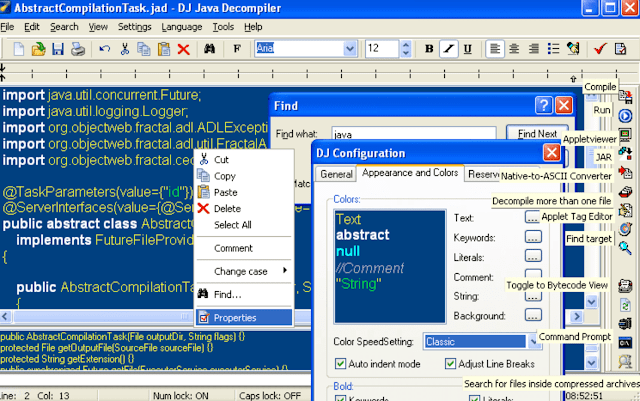
A Java decompiler can turn compiled Java bytecode—usually found in .class files or .jar archives—into readable Java-like source code. Developers use decompilers to inspect code when the original source is unavailable, troubleshoot compatibility issues, or learn how a library works.
Before downloading a Java decompiler, consider what you need to inspect, which Java versions it supports, and whether the download comes from a trustworthy source.
Popular Java Decompilers
CFR
CFR is a standalone decompiler that runs from the command line. It can process individual class files and JAR archives, and it is regularly used to inspect bytecode produced by modern Java compilers. Check the project’s official page for the current release and usage instructions.
FernFlower
FernFlower is a Java decompiler associated with the IntelliJ IDEA ecosystem. It is available through IntelliJ IDEA and related tools, making it a convenient option for developers who already work in that environment. Use the official JetBrains website or project documentation to find the appropriate download.
JD-GUI
JD-GUI provides a graphical interface for browsing decompiled Java files and JAR archives. It may be useful if you prefer exploring code visually instead of working in a terminal. Availability and compatibility can vary by release, so consult the project’s official site or repository before downloading.
JADX
JADX is designed primarily for decompiling Android applications, including APK files. It can also be useful when investigating Android-related bytecode. Download it from the official GitHub repository and review its documentation for supported formats and installation steps.
How to Download a Java Decompiler Safely
- Start with the official source. Use the developer’s website, official repository, or a trusted package manager. Avoid download pages that bundle unrelated software.
- Check system requirements. Some tools require a Java Runtime Environment or a particular Java version; others provide platform-specific applications.
- Review the release details. Confirm the supported operating systems, bytecode versions, and file formats before installing.
- Verify the download when possible. If the publisher provides checksums or signatures, use them to confirm that the file has not been altered.
- Be cautious with unknown files. Decompiled applications may contain unsafe code. Do not run an unfamiliar program just because its contents have been inspected.
Using a Command-Line Decompiler
Many Java decompilers can be run from a terminal. For example, a command may look like this:
java -jar cfr.jar application.jarThe exact command and options depend on the tool and version. Consult its documentation for instructions on choosing an output directory, processing individual class files, or adjusting decompilation settings.
What to Expect from Decompiled Code
Decompilation does not restore the original source code exactly. A decompiler reconstructs a readable approximation from bytecode, so comments, original variable names, formatting, and some structural details may be missing. Features such as obfuscation, compiler optimizations, or newer language constructs can also make the output harder to understand.
If the goal is to inspect program behavior, compare the decompiled output with the bytecode or application’s documentation where appropriate. Tools such as javap, included with the Java Development Kit, can display bytecode details, but it is not a Java source decompiler.
Legal and Ethical Considerations
Only decompile software when you have the right to do so. Licenses, contracts, copyright law, and local regulations may restrict reverse engineering. When inspecting third-party software, review its license and obtain permission if needed. For your own projects, keeping the original source code and build files is usually the best way to avoid relying on decompilation.
Choosing the Best Option
For a quick command-line workflow, consider CFR. For browsing code in an IDE, look at FernFlower through IntelliJ IDEA. For a graphical interface, explore JD-GUI. For Android APK analysis, consider JADX. In every case, download the tool from its official source, confirm compatibility with your files, and use the results responsibly.
8 Essential Tips for Safely Downloading Java Decompilers
- Download Java decompilers from official project pages or trusted repositories.
- Choose a tool that supports your Java version and file type.
- Check system requirements before downloading.
- Avoid third-party download buttons and bundled installers.
- Verify checksums or digital signatures when available.
- Scan downloaded files with reputable security software.
- Review the tool’s license and usage terms.
- Keep the decompiler updated from its official source.
Download Java decompilers from official project pages or trusted repositories.
When downloading a Java decompiler, use the project’s official website or a trusted repository, such as its verified GitHub page. This helps reduce the risk of installing outdated, modified, or bundled software. Before opening the download, check that it matches your operating system and review any release notes, checksums, or signature information the project provides.
Choose a tool that supports your Java version and file type.
Before downloading a Java decompiler, check that it supports both the Java version used to create the bytecode and the file type you need to inspect. Some tools work with individual .class files or .jar archives, while others are designed for Android .apk files. Choosing a compatible tool can help you get clearer results and avoid unnecessary setup issues.
Check system requirements before downloading.
Before downloading a Java decompiler, check its system requirements to make sure it will work on your computer. Review the supported operating systems and Java versions, and confirm whether the tool needs a separate Java Runtime Environment or other dependencies. Taking a moment to verify compatibility can help you avoid installation problems and choose a version suited to your setup.
Avoid third-party download buttons and bundled installers.
When downloading a Java decompiler, avoid third-party download buttons and bundled installers, which can lead to misleading links or unwanted software. Get the tool from its official website or trusted project repository, and check the publisher and release details before opening the file.
Verify checksums or digital signatures when available.
When downloading a Java decompiler, verify its checksum or digital signature if the publisher provides one. A checksum lets you compare the downloaded file against a value published by the developer, while a digital signature can help confirm the file’s origin and integrity. Follow the project’s official instructions to perform the check, and download both the tool and its verification details from trusted sources.
Scan downloaded files with reputable security software.
Before opening a Java decompiler download, scan the file with reputable, up-to-date security software. This simple precaution can help detect malware or unwanted software, especially if the file came from a third-party download site. For added confidence, download decompilers from their official websites or repositories and verify any checksums the developer provides.
Review the tool’s license and usage terms.
Before downloading a Java decompiler, review its license and usage terms to understand how you’re allowed to install, use, modify, or redistribute the tool. Also check whether its terms—or the license for the software you plan to inspect—place limits on decompilation or reverse engineering. When in doubt, consult the relevant documentation or seek permission before proceeding.
Keep the decompiler updated from its official source.
Keep your Java decompiler updated by downloading new versions only from the developer’s official website or repository. Updates can improve compatibility with newer Java versions, fix bugs, and address security issues. Avoid unofficial download sites, which may offer outdated or modified files, and check the project’s release notes to understand what has changed before installing an update.