
cfchris.com

Loading

java source code

Java Source Code: A Beginner’s Guide to Writing and Running Programs

Understanding Java Source Code

Java source code is the human-readable text developers write to create Java applications. It contains instructions, data definitions, and logic that describe how a program should work. Before a Java program can run, its source code is typically compiled into bytecode, which runs on the Java Virtual Machine (JVM).

What Is a Java Source File?

Java source files usually have the .java extension. A source file can contain classes, interfaces, methods, variables, and comments. For example, a simple program might look like this:

public class HelloWorld {

public static void main(String[] args) {

System.out.println("Hello, world!");

}

}

In this example, HelloWorld is a class. The main method is the program’s entry point, and System.out.println displays a line of text.

From Source Code to a Running Program

Java uses a two-stage process to turn source code into a running application:

  1. Compilation: The Java compiler, javac, checks the source code and converts it into bytecode. The result is commonly saved in a .class file.
  2. Execution: The JVM runs the bytecode. Because JVMs are available for many operating systems, the same compiled program can often run on different platforms.

A typical command-line workflow is:

javac HelloWorld.java

java HelloWorld

The first command compiles the source file. The second starts the program.

Key Parts of Java Source Code

  • Classes and interfaces: These define the structure and behavior of a Java program.
  • Methods: Methods contain instructions that perform tasks.
  • Variables: Variables store values, such as numbers, text, or object references.
  • Packages and imports: Packages organize related code, while import statements make other classes available.
  • Comments: Comments explain code to readers and are ignored by the compiler.

Java is case-sensitive, so total and Total are different names. In conventional Java projects, class names use PascalCase, while method and variable names usually use camelCase.

Why Source Code Matters

Readable source code is easier to maintain, test, and improve. Clear names, consistent formatting, and focused methods help developers understand how a program works. Comments are useful when they explain intent or important decisions, but well-written code should also communicate its purpose through its structure and naming.

Java source code is also the foundation for collaboration. Teams use version control systems to track changes, review updates, and coordinate work. Automated tests and build tools can help verify that changes behave as expected.

Getting Started

To begin writing Java source code, install a Java Development Kit (JDK), choose a text editor or integrated development environment, and create a file with a .java extension. Start with a small program, compile it, and run it. As you learn, explore variables, conditionals, loops, methods, classes, and exception handling.

Learning to read and write Java source code takes practice. By building small projects and reviewing clear examples, beginners can develop a solid understanding of how Java programs are structured and how they run.


Understanding Java Source Code: Common Questions Answered

  1. Is Java source code human-readable?
  2. Is Java a source code?
  3. Is Java outdated in 2026?
  4. Is Java built on C or C++?
  5. What is the source code of Java?

Is Java source code human-readable?

Yes, Java source code is human-readable: it uses familiar words, symbols, and a structured syntax that developers can write and understand. For example, a Java statement such as System.out.println("Hello, world!"); clearly indicates that text will be displayed. Although some programs can become complex, clear naming, formatting, and comments make Java source code easier to read and maintain.

Is Java a source code?

No. Java is a programming language, not source code itself. Source code is the human-readable set of instructions a programmer writes using Java, usually saved in files with the .java extension. A Java compiler then converts that source code into bytecode that can run on the Java Virtual Machine (JVM).

Is Java outdated in 2026?

No, Java is not outdated in 2026. It remains widely used for enterprise software, backend services, Android development, and large-scale systems, with ongoing updates to the language and its ecosystem. While newer languages may suit some projects better, Java continues to be a practical choice when long-term support, mature tools, performance, and a large developer community matter.

Is Java built on C or C++?

Java is not built on C or C++, though its syntax was influenced by both languages, especially C and C++. Java was designed as a separate programming language, with features such as automatic memory management and a bytecode-based runtime. Its compiler and runtime have been implemented in different languages over time, so Java itself is not simply a version of C or C++.

What is the source code of Java?

Java source code is the human-readable set of instructions written by developers to create Java programs, typically saved in files with the .java extension. A Java compiler translates this code into bytecode, which the Java Virtual Machine (JVM) executes. If you mean the source code used to build the Java platform itself, much of it is available in the OpenJDK project.
java se development kit 8

Java SE Development Kit 8: Features, Benefits, and Getting Started

Java SE Development Kit 8: Features, Uses, and Legacy Support

The Java SE Development Kit 8, commonly called JDK 8 or Java 8, is a toolkit for developing and running Java applications. Released in March 2014, it introduced major language and library improvements that shaped modern Java development. Many organizations still use JDK 8 to maintain established applications, even as newer Java releases are available.

What Is the JDK?

The JDK provides the tools developers need to build Java programs. It includes the Java compiler, runtime components, standard libraries, and utilities for tasks such as debugging and packaging applications. The compiler, javac, converts Java source files into bytecode that runs on a compatible Java Virtual Machine (JVM).

JDK 8 implements the Java SE 8 platform. It is distinct from the Java Runtime Environment (JRE), which is intended for running Java applications rather than developing them. In JDK 8, the required runtime components are included with the development kit.

Notable Features in Java 8

Lambda Expressions

Lambda expressions let developers write concise implementations of functional interfaces—interfaces with a single abstract method. They can make event handling, callbacks, and collection processing easier to read.

names.forEach(name -> System.out.println(name));

Streams

The Streams API provides a way to process collections through operations such as filtering, mapping, and sorting. Stream pipelines can reduce repetitive iteration code and can be run sequentially or, where appropriate, in parallel.

List<String> longNames = names.stream()

.filter(name -> name.length() > 5)

.collect(Collectors.toList());

Default and Static Interface Methods

Java 8 allows interfaces to include default method implementations and static methods. This made it possible to extend interfaces with new behavior while helping existing implementations remain compatible.

Optional

The Optional class represents a value that may or may not be present. It can make the possibility of a missing result more explicit and encourage code to handle that case deliberately.

Modern Date and Time API

The java.time package introduced a more comprehensive date and time API than the older Date and Calendar classes. Types such as LocalDate, Instant, and ZonedDateTime help represent common date and time values clearly.

Other Changes

JDK 8 also introduced the Nashorn JavaScript engine and removed the PermGen memory area, replacing it with Metaspace. Nashorn was later removed from the JDK, so applications that depended on it may need an alternative when being updated.

Getting Started

To use JDK 8, choose a distribution that suits your project and operating system. Oracle and other OpenJDK vendors have offered JDK builds; licensing, update policies, and support terms can differ. Check the vendor’s current documentation before downloading or using a distribution, especially for commercial systems.

After installation, confirm that the tools are available from a terminal:

java -version

javac -version

A simple program can be saved as HelloWorld.java, compiled, and run with these commands:

javac HelloWorld.java

java HelloWorld

When Does JDK 8 Make Sense?

JDK 8 can be a practical choice when maintaining software that was built for Java 8 or when compatibility with an established environment is essential. Its language features remain useful, and its large user base means many teams are familiar with it.

For new projects, consider whether a newer Java release better fits the application’s requirements. Newer releases include additional language and platform improvements, and selecting a supported version can simplify security and maintenance planning.

Security and Support Considerations

JDK 8 is an older platform, so the availability of updates depends on the vendor, distribution, and support arrangement. Before deploying it, confirm that the chosen build receives appropriate security updates and that its license permits the intended use. Keep the JDK patched, limit unnecessary network exposure, and plan a migration path if the application can move to a newer Java version.

Conclusion

Java SE Development Kit 8 remains an important release in Java’s history. Lambdas, streams, the modern date and time API, and other additions made Java development more expressive and convenient. It continues to serve legacy applications, but teams should evaluate vendor support, licensing, and security needs before choosing it for ongoing use.


Essential Tips for Mastering Java SE Development Kit 8

  1. Use `javac` to compile and `java` to run programs.
  2. Set `JAVA_HOME` to your JDK 8 installation.
  3. Use lambdas and streams to simplify collection processing.
  4. Use try-with-resources to close files and other resources safely.
  5. Keep JDK 8 updated with the latest available security patches.

Use `javac` to compile and `java` to run programs.

Use `javac` to compile your Java source files into bytecode, then use `java` to run the program. For example, compile `HelloWorld.java` with `javac HelloWorld.java`, then launch it with `java HelloWorld`—without adding the `.java` extension to the class name.

Set `JAVA_HOME` to your JDK 8 installation.

Set the `JAVA_HOME` environment variable to the directory where JDK 8 is installed so development tools can find the correct Java version. For example, point it to the JDK’s root folder—not its `bin` subfolder—and add `%JAVA_HOME%\bin` to `Path` on Windows or `$JAVA_HOME/bin` to `PATH` on macOS and Linux. After updating the variables, open a new terminal and verify the setup with `java -version` and `javac -version`.

Use lambdas and streams to simplify collection processing.

In Java SE Development Kit 8, lambdas and streams can make collection processing more concise and readable. Instead of writing a loop to filter, transform, or sort items, you can describe the operations directly—for example, use a stream’s filter method to select matching elements and map to transform them. Lambdas provide the small pieces of behavior those operations need, helping reduce boilerplate while keeping the processing steps clear.

Use try-with-resources to close files and other resources safely.

Use try-with-resources in Java 8 to manage files and other resources that implement the AutoCloseable interface. Declare the resource inside the try statement, and Java will close it automatically when the block ends—even if an exception occurs. This helps prevent resource leaks and keeps code simpler than manually closing resources in a finally block.

Keep JDK 8 updated with the latest available security patches.

Keep JDK 8 updated with the latest security patches available from your chosen vendor. Updates can fix vulnerabilities that may put applications and systems at risk, so review the vendor’s release notes and apply relevant patches promptly. Because support and update availability vary by distribution and license, verify that your JDK build still receives security updates and plan a move to a supported Java version when appropriate.

simple java program

Simple Java Program: A Beginner’s Guide to Writing and Running Your First Code

How to Write a Simple Java Program

Java is a popular programming language used to build desktop, web, and mobile applications. A good way to get started is to write a small program that displays a message on the screen.

Your First Java Program

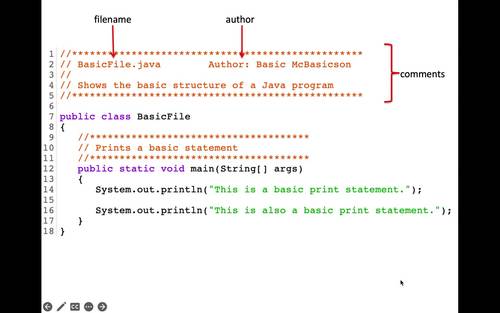
The program below prints “Hello, World!” in the console:

public class HelloWorld {

public static void main(String[] args) {

System.out.println("Hello, World!");

}

}

Understanding the Code

  • public class HelloWorld defines a class named HelloWorld. In Java, the class name should match the file name, so save the program as HelloWorld.java.
  • public static void main(String[] args) defines the main method. Java starts running the program from this method.
  • System.out.println() displays text in the console. The text to display goes inside the parentheses and quotation marks.
  • Braces, { }, mark the beginning and end of the class and method.
  • The semicolon at the end of the print statement tells Java that the instruction is complete.

Compile and Run the Program

Install a Java Development Kit (JDK), then open a terminal or command prompt in the folder containing HelloWorld.java. Compile the program with:

javac HelloWorld.java

If compilation succeeds, Java creates a file named HelloWorld.class. Run the program with:

java HelloWorld

The output will be:

Hello, World!

Try a Small Change

Replace the message inside System.out.println() with your own text. For example:

System.out.println("Java is fun to learn!");

Save the file, compile it again, and run it to see the new output. This simple example introduces the basic structure of a Java program and gives you a starting point for exploring variables, input, and other programming concepts.


7 Essential Tips for Writing Simple Java Programs

  1. Use `public static void main(String[] args)` as the program’s entry point.
  2. Save the file with the same name as its public class.
  3. Use `System.out.println()` to display text.
  4. End most statements with a semicolon.
  5. Match every opening brace with a closing brace.
  6. Compile with `javac` and run with `java`.
  7. Keep variable names clear and descriptive.

Use `public static void main(String[] args)` as the program’s entry point.

In a simple Java program, `public static void main(String[] args)` is the entry point—the method Java looks for to begin running your code. Place the statements you want the program to execute inside its braces. The method signature must be written with the correct spelling and capitalization, or Java won’t recognize it as the program’s starting point.

Save the file with the same name as its public class.

In Java, save your source file with the same name as its public class, including matching capitalization, and add the .java extension. For example, if your public class is HelloWorld, name the file HelloWorld.java. This naming rule helps the Java compiler locate and compile the class correctly.

Use `System.out.println()` to display text.

Use `System.out.println()` to display text in a Java program’s console. Place the text inside quotation marks within the parentheses, as in `System.out.println(“Hello, world!”);`. Java prints the message and then moves to a new line, making this method useful for showing greetings, results, and other output.

End most statements with a semicolon.

In Java, most statements end with a semicolon, which tells the compiler that an instruction is complete. For example, `System.out.println(“Hello, world!”);` needs a semicolon at the end. Forgetting one can cause a compile-time error, so check your statements when the compiler reports a problem. Some Java structures, such as class and method declarations, do not end with semicolons.

Match every opening brace with a closing brace.

In a simple Java program, every opening brace ({) must have a matching closing brace (}). Braces mark the beginning and end of code blocks, such as classes and methods, so a missing or misplaced brace can cause compilation errors or change how the program works. Indenting nested blocks consistently makes braces easier to match and your code easier to read.

Compile with `javac` and run with `java`.

To compile a simple Java program, open a terminal in the folder containing the `.java` file and run `javac FileName.java`, replacing `FileName` with the name of your file. After compilation succeeds, run the program with `java ClassName`—without the `.java` extension—to see its output.

Keep variable names clear and descriptive.

Use clear, descriptive variable names so your code is easier to read and understand. For example, studentAge is more informative than x, and totalPrice makes its purpose clearer than n. Meaningful names also make simple Java programs easier to update and help you spot mistakes as you learn.